


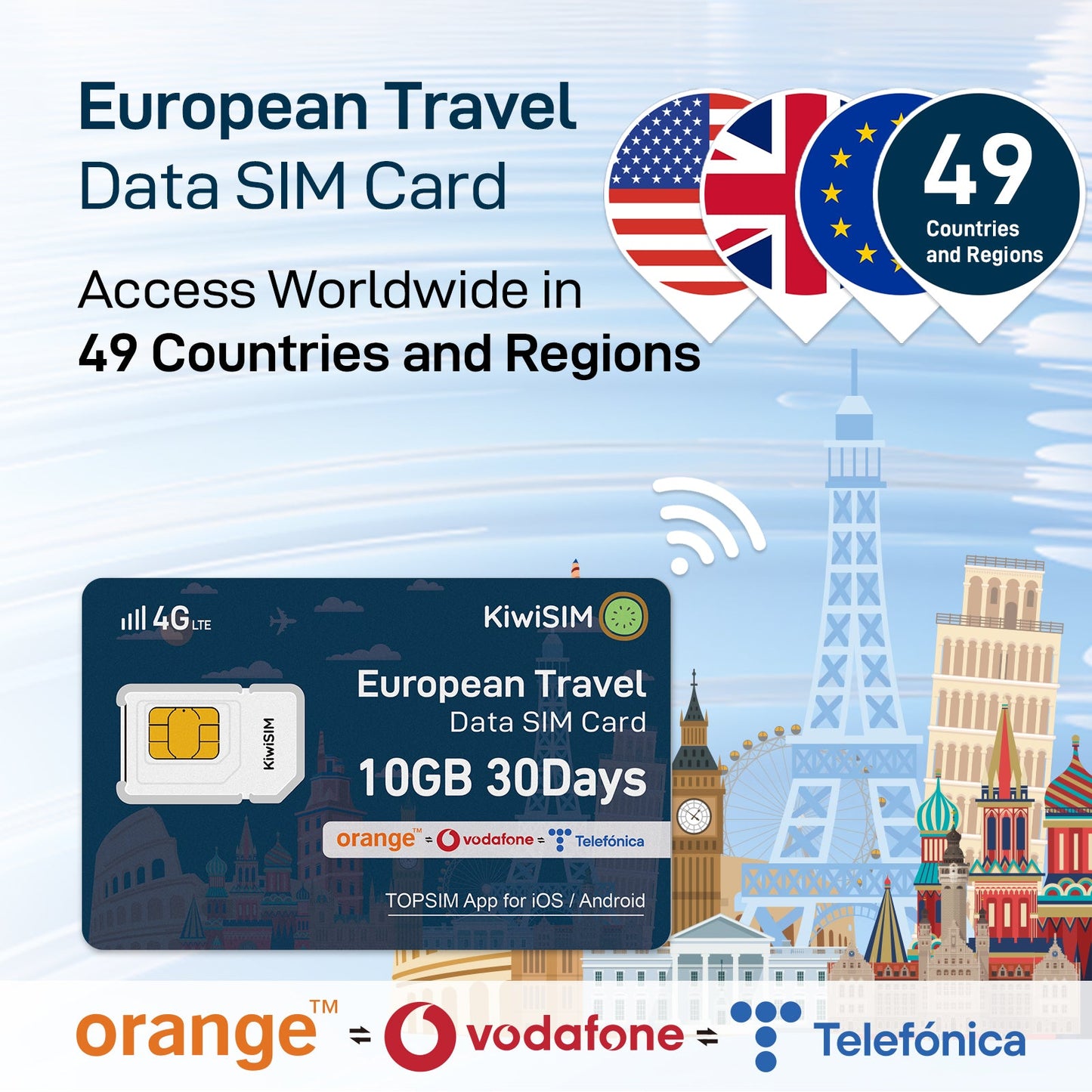
European Travel SIM | Data Only | Support 50 Countries
European Travel SIM | Data Only | Support 50 Countries
Support AT&T and Verizon
Coverage in 51 Countries:Seamless Coverage in USA and global 51 Countries used
No Contract Fees: No contract or hidden fees, offering flexible usage.
Compatible with 4G Unlocked Devices
Supported Countries
Supported Countries

Our SIMs work in 51 countries worldwide. Here's the list by continent:
(North America)
- United States
(Europe)
- Albania
- Armenia*
- Austria
- Belgium
- Bulgaria
- Croatia
- Cyprus*
- Czech Republic
- Denmark
- Estonia
- Finland
- France
- Germany
- Greece
- Hungary
- Iceland
- Ireland
- Italy
- Latvia
- Liechtenstein
- Lithuania
- Luxembourg
- Malta
- Moldova
- Montenegro
- Netherlands
- Norway
- Poland
- Portugal
- Romania
- Russian Federation*
- Slovakia
- Slovenia
- Spain
- Sweden
- Switzerland
- Turkey*
- Ukraine
- United Kingdom
(Asia)
- Armenia*
- Cyprus*
- Hong Kong (China)
- Indonesia
- Israel
- Kazakhstan
- Kyrgyzstan
- Macao (China)
- Pakistan
- Russian Federation*
- Thailand
- Turkey*
- Uzbekistan
(Oceania)
- Australia
- New Zealand
Couldn't load pickup availability



How to activate SlM card?
- Step 1 : Make sure your device UNLOCKED
- Step 2 : Read your device user manual to find APN setting
- Step 3 : Fill in APN plus
- Step 4: And restart your device
How to set APN on your iPhone or iOS Devices?
Phone Settings=>Cellular=>Cellular Data=>Cellular Data Network=>enter the APN information=>Enable Data Roaming
- APN:plus
- Username and password do not need to be entered
Go to YouTube Video Tutorial
How to set APN on your Android Devices?
Phone Settings=>Mobile Network=>Select the card name=>Turn on Data Roaming=>Access Point Name(APN)=>New APN=>Enter the APN information
- APN:plus
- Username and password do not need to be entered
Go to YouTube Video Tutorial
How to set APN on camera?
Method 1:Insert the card into the phone, configure the APN of the card, and then insert the card into the camera.
Method 2:=>Power on the camera Press the "Reset" button for 5-10 seconds. After you hear the device say “system reset” Insert the card in the correct direction.
=>Enter the device's APPClick “Add a device” Then Click “Setup 4G Device”
=>Click “Blue light isn't constantly on? Click here” Click “Setup APN”
=>Click “Setup APN” Enter “unet” Click “OK”
=>After configuring the APN If the camera has not detected the card, you can let the device scan the QR code. If the card is detected the card, you can click“ Next”
- APN:plus
- Username and password do not need to be entered
Go to YouTube Video Tutorial
How to set APN on your Mifi/Wifi Hotspot?
①Insert the SIM Card
Properly insert the SIM card into the WiFi hotspot device's SIM slot.
②Access the Hotspot Admin Panel
Connect your phone/computer to the hotspot's WiFi network.
Open a browser and enter the hotspot’s admin address (e.g., http://192.168.0.1 or refer to the device manual).
③Log In to the Admin Panel
Enter the administrator username and password (default credentials are usually on the device label or manual).
④Configure APN
Navigate to "Mobile Network" or "APN Settings".
Manually add or modify the APN
Fill in APN: plus
Username and password do not need to be entered
⑤Enable Data Roaming
On the same page, find the "Data Roaming" or "Roaming" option and toggle it "ON".
⑥Save and Restart
Save the settings and restart the hotspot device. Wait for the signal light to stabilize (~1-2 minutes).
⑦Test the Connection
Reconnect to the hotspot’s WiFi and try browsing or using data to confirm activation.
- APN:plus
- Username and password do not need to be entered
Go to YouTube Video Tutorial
How to set APN on SmartWatch?
Phone Settings=>Cellular=>Cellular Data=>Cellular Data Network=>enter the APN information=>Enable Data Roaming
- APN:plus
- Username and password do not need to be entered
Go to YouTube Video Tutorial


